Readthe details.
Room to read
Keep amounts, account identifiers and transaction status side by side. Follow the record without losing the context around it.
Account · Amount · Status
A dedicated desktop workspace for your accounts, assets and activity on NEAR. See the full context before you take action.
NEAR WALLET · DESKTOP
Your accounts, assets and activity. One dedicated desktop workspace.

v3.6.4

v3.5.9

v3.5.6
Independent desktop releases. Not NEAR Foundation releases.
MADE FOR A BIGGER PICTURE
An account name, a transaction record, a network. Give each detail the space it needs in a dedicated desktop workspace.
Keep amounts, account identifiers and transaction status side by side. Follow the record without losing the context around it.
Account · Amount · StatusBring the sender, recipient, network and action into the same view. Take time to understand what a request is asking you to do.
Sender · Recipient · ActionMove from your account to its activity, then learn about the network and independent applications behind the wider ecosystem.
Wallet · Network · ApplicationsSee your native NEAR, tokens and storage reserve in one place. Clear, readable information helps you understand your portfolio before you take action.
ACTIVITY, IN CONTEXT
Every account, amount and status. Read the details behind each transaction.

Follow the details.
Understand the movement.
A NEAR transaction has a signer (the account that authorised it), a receiver (the account or contract it targets) and one or more actions such as Transfer or FunctionCall.
Each transaction has a hash you can look up in a public block explorer. The status tells you whether the transaction and its resulting receipts succeeded.
Gas is the unit of computation; the fee you pay is gas used multiplied by the network gas price, paid in NEAR.
Your activity, clearly organised.
Received · + 120.00 NEARstudio.near · Today · 14:02 · NEAR Mainnet
VALUE IN MOTION
The sender, recipient and amount. All in view before you confirm.
25 NEAR
NEAR charges fees based on gas consumed. A portion of fees on contract calls is directed to the contract's account, which is part of how NEAR rewards developers.
Fee amounts vary with the actions performed and network conditions. Always read the estimate presented before approving.
Transaction preview with example accounts and amounts. Review every action before signing.
KNOW YOUR ACCOUNT
Explore how account identity, available NEAR, storage reserve and access permissions fit together in the desktop interface.
 NEAR62%
 USDC21%
 wETH11%
 SWEAT6%
Example account data
NEAR1,284.50USDC2,410.00wETH0.842SWEAT18,900Read the complete account identifier and the network together. Similar-looking account names can refer to different accounts.
See the distinction between available NEAR and the amount reserved for account storage.
Full-access and function-call keys have different scopes. The account view places those permissions alongside the account details.
NEAR uses an account model where an account ID can be human-readable, such as alice.near, or implicit — a 64-character lowercase hex string derived from a public key.
Named accounts make it easier to recognise who you are sending to, but a similar-looking name is not the same account. Read every character, particularly before the .near suffix.
Accounts on NEAR can hold multiple access keys with different permission levels. Full-access keys can do anything with an account; function-call keys are limited to specific contracts and allowances.
On NEAR, accounts and contracts reserve a portion of their NEAR balance to pay for the storage their data uses on the network. This is called storage staking.
Because of this, a small portion of a balance may appear unavailable. It is released if the stored data is removed.
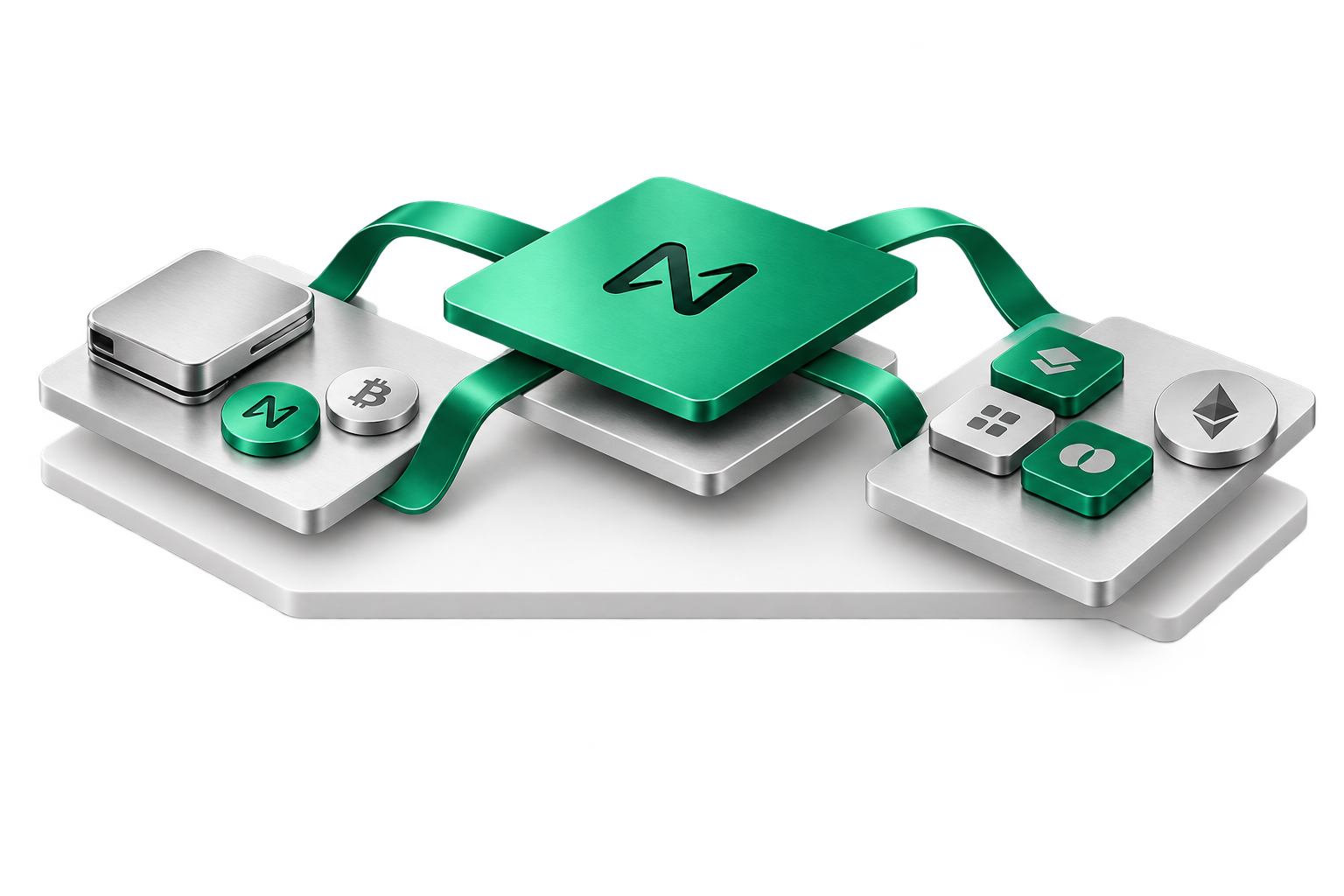
Your wallet connects you to the NEAR network and the applications you use. Follow the path from authorisation to network processing and application state.

Read the account, recipient and action before signing. Access keys determine which actions can be authorised for an account.
NEAR distributes processing across shards. Transactions use gas for computation; account storage also reserves part of the NEAR balance.
A transaction hash identifies the record. Inspect its status, actions and receipts to understand the outcome, including fees charged for processing.
NEAR Protocol is a layer-one blockchain using proof-of-stake consensus and a sharding design called Nightshade, which splits network work across shards so capacity can scale.
The native token, NEAR, is used for transaction fees, storage staking and validator staking.
NEAR INTENTS · ECOSYSTEM INFRASTRUCTURE
NEAR Intents infrastructure lets applications express an outcome and evaluate proposed routes.
A user describes the outcome they want, such as exchanging one asset for another, with limits on what they will accept.
Independent solvers propose ways to fulfil the intent. Their proposals can differ in price and the path taken.
An integrated application selects a proposal according to its own logic and presents the terms for confirmation.
Settlement happens through smart contracts, subject to network conditions and the limits the user set.
With intents, a user states what they want to achieve rather than every step. Solvers compete to propose execution, and settlement happens subject to network conditions.
Participating applications connect to solvers and smart-contract settlement. Review the selected route, assets, limits and destination network before approving an intent.
Explore the ecosystem
A considered collection of applications, wallets and infrastructure. Clear context. Direct connections.
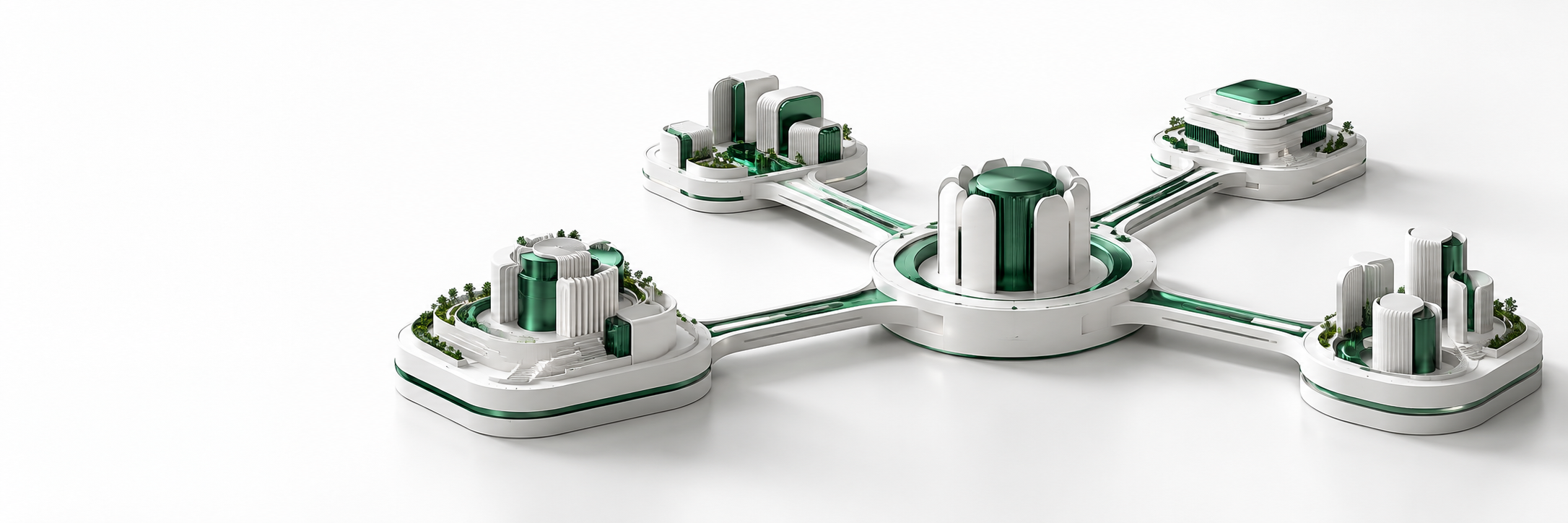
Independent ideas.
Connected through NEAR.
5 products shown.
near.com
A NEAR-powered multichain interface.

rhea.finance
DeFi trading and liquidity on NEAR.

hot-labs.org
Cross-chain infrastructure and the HOT Wallet.

meteorwallet.app
An independent wallet for NEAR accounts.
sweateconomy.com
A movement-to-earn app using NEAR.
Discover independently. Choose thoughtfully.
Built by independent teams on open infrastructure. Review each application’s permissions and documentation before connecting.
THE WIDER ECOSYSTEM
Examples from the wider NEAR Intents ecosystem.

Hardware wallet software

Browser wallet
HOT Protocol

Crypto platform
Infrastructure relationships, not NEAR Wallet partnerships or endorsements. Verify current details with each product.
BEFORE YOU SIGN
Review the key details before you sign, so you can make informed decisions.
Read the complete sender, recipient and contract addresses. Similar names can refer to different accounts.
Check whether you are using mainnet or a test network. Keep the network visible alongside the account and amount.
Check the amount, token, fees and requested permissions. Pause if the request differs from what you intended.
Verify the application or website requesting the action. Treat unexpected messages and requests for recovery information with care.
Review example accounts, amounts and permissions.
A LITTLE CONTEXT GOES A LONG WAY
Know where your software comes from, recognise unexpected requests and keep account recovery information private. The essentials, explained here.
Three essentials.
Take the time to understand them.
Source → Publisher → Install
Check before openingUse this site's download section and confirm your OS publisher prompts.
Navigate to the homepage's download section yourself rather than following links in messages, ads or social posts.
When you open an installer, Windows and macOS show who signed it. If the publisher shown is unexpected or missing, stop and do not continue.
Never install wallet software sent to you by someone offering help in a private chat.
Get up and running in a few simple steps.
Select the release for Windows, macOS or Linux.
Use the operator’s authenticated release.
Confirm the publisher shown by your system before installing.
Open NEAR Wallet from your applications and start exploring.
GOOD QUESTIONS. CLEAR ANSWERS.
Find the right release, understand Launch App and get help with installation.
Windows v3.6.4, macOS v3.5.9, Linux v3.5.6. Choose the release matching your computer.
Check the operating system in your computer’s settings, then choose its matching release above.
It helps you return to the installed desktop wallet. It does not inspect your files or ask for credentials.
The dialog offers Download NEAR Wallet and Search Again. You can also open an installed application directly.
Use an independently verified address and the operator’s authenticated release. Check the publisher shown by your operating system before installing.
Confirm the release matches your operating system and verify its publisher. If the publisher is missing or unexpected, stop. If an installation already exists, try opening the application directly from your computer’s applications list.
The website works on mobile browsers. The wallet releases here are for desktop computers only.
HELP, RIGHT HERE
Search accounts, transactions, installation and the NEAR ecosystem. Open an answer below to read it in full.
Getting started & troubleshooting
Start by confirming you obtained the installer from this site's download section and that your operating system recognises it as coming from the expected publisher.
Before moving meaningful value, practice with a small amount. Check the account identifier you are sending to, the network shown, and the fee estimate every time.
Keep recovery information offline. No legitimate support channel, including this website's assistant, will ever ask you to share it.
This message appears when the website cannot detect the desktop application on your device.
Install the version for your operating system from the download section, open it once, then return and choose Search Again. You can also open the application directly from your system.
Download buttons start a download only when an authenticated installer has been connected for that platform. If nothing happens, the installer for that platform is not yet linked.
Do not look for the installer on third-party sites. Check back on this page.

YOUR NEXT STEP
Download NEAR Wallet and explore your NEAR accounts on desktop.
Get NEAR Wallet